A Few of My Favorite Tech Tools

Shanna’s Go-To Classroom Tech Tools

After 234 episodes of the Tech Tools for Teachers Podcast, I’ve talked about a lot of websites.

A lot.

Over the years, I’ve shared hundreds of tools, and at some point, I’ve used every single one of them in some way with students, teachers, or in my own planning. But there are a handful of tools that I come back to again and again — the ones I use every day, every week, or anytime I need to create something quickly and clearly for my classroom.

For our second-to-last episode, I wanted to share a few of my absolute favorites.

Classroomscreen
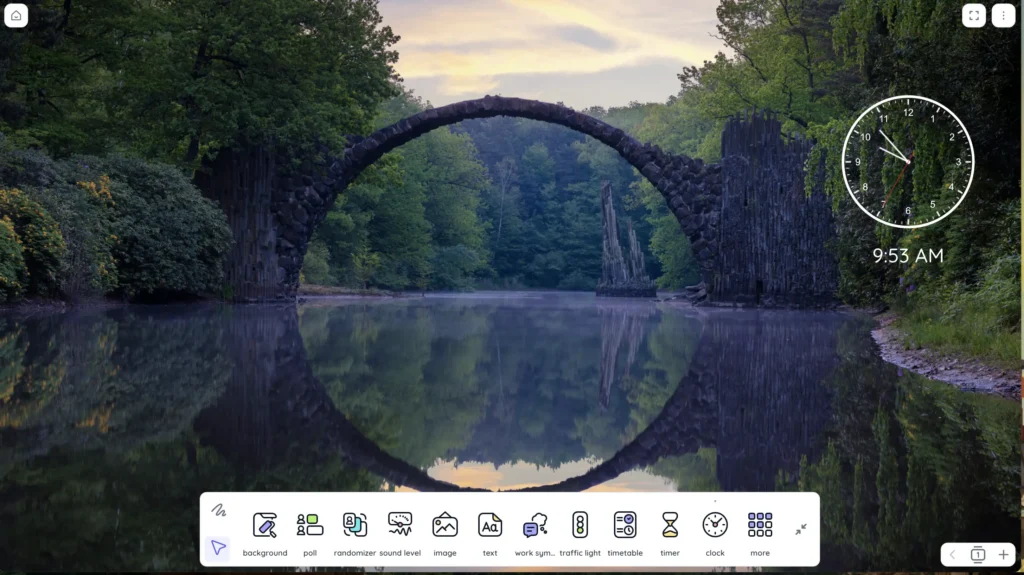
Classroomscreen is one of my daily essentials.

It’s a simple classroom management tool that lives on my board almost every day. I use the free version and have never needed to upgrade.

My favorite features include:

  • digital clock
  • timer
  • text box for directions
  • randomizer
  • group maker
  • visual classroom management tools
  • beautiful backgrounds from around the world

Since my classroom doesn’t have windows, I love using the backgrounds as a little “window” to the world. I teach social studies, so it’s also a fun way to introduce students to different places.

The timer and text box are the tools I use the most. Whether students are rotating through stations, working in groups, or following a daily to-do list, Classroomscreen keeps everything visible and organized.

Google Slides

I use Google Slides constantly — and not just for presentations.

One of my favorite tricks is changing the slide size. If you go to:

File → Page Setup → Custom

you can make your slide any size you need.

That means Google Slides can become:

  • posters
  • timelines
  • infographics
  • newsletters
  • study guides
  • modified assessments
  • visual supports

I especially like using Slides when I need to create or modify materials for students. It’s easy to move text boxes, add images, create visuals, and adjust layouts. For students who need translated materials, visuals, or modified assessments, Google Slides gives me the flexibility I need.

It’s also collaborative, which makes it easy to share with support teachers or other staff who may need to adjust materials for specific students.

Google Vids

Google Vids has become one of my newer go-to tools this year.

I’ve been using it to create short video directions for students so I don’t have to repeat the same instructions over and over again. I can record my screen, walk students through an assignment, and add the video right into the materials they’re already using.

One of my favorite features is the automatic transcript. That makes directions more accessible for students who need to read along or revisit the instructions later.

Google Vids has quickly become a helpful tool for:

  • assignment directions
  • student support
  • visual walkthroughs
  • substitute plans
  • review videos

Canva

Canva is another tool I use all the time.

Educators can get Canva for free, and it’s incredibly useful for both teachers and students.

I use Canva for:

  • posters
  • newsletters
  • classroom visuals
  • family communication
  • student projects
  • infographics

Students can use Canva to create polished, professional-looking work without spending forever choosing fonts, colors, and images. It also helps teach design skills, like using a color scheme, limiting fonts, and making information easy to read.

Recently, my students used Canva to create posters for a school food drive. They looked professional, the students were proud of their work, and the final products were easy to share and print.

Edutopia
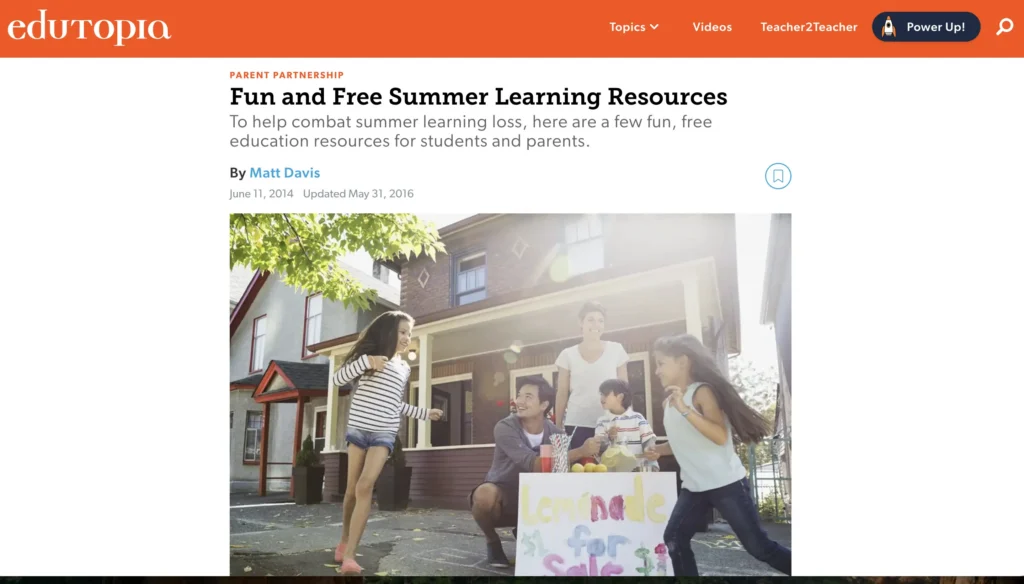
Edutopia is one of my go-to resources for quick professional reading.

I use it when I want practical, teacher-friendly articles on classroom strategies, student engagement, instructional ideas, and education trends. The articles are usually short, helpful, and easy to share with staff.

It’s a great place to find ideas without needing to hand someone a six-page article after a full day of teaching.

Solution Tree

I also use Solution Tree resources often, especially books and teacher guides.

Many of their books include digital resources, reproducibles, and support materials online, which makes it easier to put ideas into practice. As an instructional coach, I’m often looking for resources that help teachers reflect, plan, and try something new without starting from scratch.

A Few Favorite Things

So, if you’ve ever wondered what tools I actually use the most, these are the big ones:

  • Classroomscreen
  • Google Slides
  • Google Vids
  • Canva
  • Edutopia
  • Solution Tree resources

And Fuzz’s favorite? Blob Opera, obviously.

Some tools are fun to try once. Others become part of your everyday teaching life. These are the tools that have stuck with me, saved me time, supported my students, and helped me stay organized.

Go educate and innovate.

Shanna

TECH MENTIONED IN THIS EPISODE

[00:00:00] Shanna Martin: Thanks for listening to the Tech Tools for Teachers podcast, where each week we talk about a free, easy tool of technology that you can use in your classroom. I’m your host, Shanna Martin. I’m a middle school teacher, technology and instructional coach for my district.

[00:00:32] Fuzz Martin: And I’m her producer and husband, Fuzz Martin, and Shanna is one of my favorites.

[00:00:40] Shanna Martin: Thanks. Eee.

[00:00:42] Fuzz Martin: Ah, yes. Cheese.

[00:00:46] Shanna Martin: So we’re at episode 234.

[00:00:51] Fuzz Martin: Mm-hmm.

[00:00:52] Shanna Martin: Second to last episode of the podcast. So I often get asked by teachers that I coach, teachers that I work with, random people who ask me questions, I, I get asked often what websites do I use the most in my classroom. So I still teach, 50% of the time I’m in the classroom, half the time, and I have certain sites that are my go-tos, like bread and butter, use them all the time.

[00:01:25] Shanna Martin: I have, at some point, used, in some capacity-

[00:01:30] Fuzz Martin: Yes …

[00:01:30] Shanna Martin: every site that I have ever shared on my podcast.

[00:01:33] Fuzz Martin: I don’t, I think we lost count on the tally because, uh-

[00:01:36] Shanna Martin: We have … it,

[00:01:37] Fuzz Martin: it

[00:01:37] Shanna Martin: just became overwhelming Because, I mean, if we, like, 234 episodes, and I’ve shared, like, on average probably three sites an episode, because some sites, some weeks I’ve shared, like, five.

[00:01:50] Shanna Martin: Like, way back when it was my 50th episode, I shared 50 of my favorite things, I feel like. Like, there’s- Mm-hmm … different things that I’ve done that I’ve probably shared about on average three sites an episode. It’s a lot of websites that I talk about. And yes, I do repeat some of them as they make changes and updates and things like that.

[00:02:09] Shanna Martin: But I have certain websites that I use all of the time. Mm-hmm. And anytime someone’s like, “Hey-” Do you use this one or what do you recommend? Or, like, how do you keep your life organized or those types of things. So I thought I would share my go-to sites that I have used for years. Like, this is not… Well, one of them I used more recently ’cause I love it.

[00:02:37] Shanna Martin: But- … for the most part, um, they’re not AI sites. Like, I do use AI occasionally for things when I’m planning or organizing or starting to build, like, a rubric or something.

[00:02:49] Fuzz Martin: Yeah.

[00:02:51] Shanna Martin: So I use Claude sometimes, and I use, um, Magic School occasionally, but that’s not really my go-to, I need this up in my classroom every day, if that makes sense.

[00:03:02] Fuzz Martin: Sure.

[00:03:03] Shanna Martin: A lot of that I just create from my brain. Um, but I use… So the first I’m gonna talk about today is called Classroomscreen, and I know I’ve talked about it in previous episodes.

[00:03:16] Fuzz Martin: You’ve talked about all these, right?

[00:03:17] Shanna Martin: I’ve talked about all of these sites- Yeah … at some point in my podcast. Uh, if you go to the website, like, Smart in WI, and you type in most of these- Yeah

[00:03:25] Shanna Martin: like, it will come up. So Classroomscreen, it’s C-L-A-S-S-R-O-O-M-S-C-R-E-E-N.com, Classroomscreen. And it will say, like, if you go to the home site, classroomscreen.com, and, like, just type it in, it will say, “Do you want to try out the free version?” And every week I say, “Yes.” And I have never paid for Classroom Screen.

[00:03:55] Shanna Martin: I have never used the paid version. I’ve never needed it.

[00:03:58] Fuzz Martin: Mm-hmm.

[00:03:58] Shanna Martin: Classroom Screen has every, like, classroom management tool I need in my classroom. It is up on my screen every day. I don’t talk about my actual classroom very often. My classroom has no windows in it. So when I’m teaching, whatever’s on my screen-

[00:04:15] Shanna Martin: is, like, our window to the outside world.

[00:04:18] Fuzz Martin: Yeah.

[00:04:18] Shanna Martin: And so Classroom Screen has beautiful backgrounds of places around the world, and ’cause I teach social studies, that’s kind of fun, ’cause I can, like, introduce a place. And there’s, like, 20 to pick from, 24, and some of them are pro, and I don’t pay for the pro version.

[00:04:32] Shanna Martin: So I just pick it. Um, and I choose a background or a theme or something that goes with what I’m teaching. You can pull your students from Classroom Screen. You can randomize groups if you need to. But really, the tools I use the most are the clock, because my clock is also fairly hidden in my classroom, can’t see it, so the digital clock is always on my board.

[00:04:52] Fuzz Martin: Mm-hmm.

[00:04:52] Shanna Martin: Classroom Screen is always on my board. I use the timer all of the time, ’cause I do a lot of group work and rotations in my classroom. Timer’s always up. And text, there’s a little text box. So I type in directions, like this is the to-do list of the day or for the class or for the group rotations, whatever I’m doing, and they…

[00:05:08] Shanna Martin: You can change, you know, font, color, whatever you need to. And so that Classroom Screen is my go-to on my classroom every day. Great for management. It’s got traffic lights, like if you’re an elementary teacher and we’re in green mode or red mode and you need, like, a visual for them to understand, like, s- sound levels in our classroom.

[00:05:28] Shanna Martin: Um, it has additional tools. Like, you can add extra images. There is a sound level option. You can actually click into that, and it will give you max noise. I don’t usually do that with middle school, ’cause it’s a challenge then to see how loud we can make the noise maker. Oh, sure,

[00:05:42] Fuzz Martin: sure.

[00:05:44] Shanna Martin: Because that’s what they do.

[00:05:45] Shanna Martin: But- … really… And you can hide the little bar on the bottom. So you can set up your tools and then hide it. And you also have the option to add more than one screen. So in the bottom right-hand part, you can actually shift from screens if you have more than one class. But Classroom Screen literally every day for over…

[00:06:05] Shanna Martin: I mean, it’s always been here, like 10 years-

[00:06:08] Fuzz Martin: Yeah …

[00:06:08] Shanna Martin: or more. Like, this is on my screen-

[00:06:11] Fuzz Martin: Every single day …

[00:06:12] Shanna Martin: every single day. Use it, love it.

[00:06:14] Fuzz Martin: Essential Shanna tool.

[00:06:16] Shanna Martin: Correct. And the kids are used to it. The kids can navigate it if I need them to. Like, “Hey, can you change, like, set the timer, hit go.” Like, they can do all of that for me if I need them to.

[00:06:26] Shanna Martin: But it is, like, Classroom Screen go-to on my screen every day, so I get to pick a pretty picture and look at something cool.

[00:06:32] Fuzz Martin: Mm-hmm.

[00:06:32] Shanna Martin: Besides also have all of my fundamental tools in my Classroom Screen. So Classroom Screen, that’s my, like, number one. Use it all the time. I am for, okay, there’s my number one Okay, there’s your number one And we talked about this, me going through websites, like you’re gonna get six here, so

[00:06:50] Fuzz Martin: Cool.

[00:06:50] Shanna Martin: Um, second tool, Google Slides. Yeah. Oh, yeah. I use Google Slides for everything because, and I was teaching my students this again this week, that Google Slides can be turned into any size format you need.

[00:07:03] Fuzz Martin: Yep.

[00:07:03] Shanna Martin: So if you are in a Google Slide, and it doesn’t just have to be used for slides Go to a slide, go to File, go under Page Setup, and then switch it to Custom, and you can make your Google Slide the size you need it for anything.

[00:07:20] Shanna Martin: So you can make it a document. You can make it 11 by 17, which we use for, like, posters, newsletters- Sure, yeah … infographics, ’cause we can print that, ’cause I can print it directly from my computer, or they can. Mm-hmm. Usually we print from mine if we’re doing that though. Um, you can make timelines, so you can make it longer and wider-

[00:07:38] Fuzz Martin: Yep

[00:07:38] Shanna Martin: as needed, so students can create long timelines. So Google Slides gives you the freedom of all of the adjustments. So not only adjusting, like, your, um, like, your page size, but then, like, I don’t use… I use Google Docs for some things, but if you need to create, like, a study guide- Mm-hmm … or if you need to create…

[00:08:01] Shanna Martin: When I’m creating my assessments for my ML students or my students with special needs and I’m modifying them, Google Slides allows me to drop in pictures easily, change my text boxes, and move things around visually to support my students without… And you can do that in Google Docs, but Slides just gives you more freedom when you’re creating those things.

[00:08:20] Fuzz Martin: Yeah, for sure.

[00:08:21] Shanna Martin: And so my assessments are created that way, so I can get my targets in there. I can get all the things my students need to rearrange visuals, um, organizational tools. All of that’s just easier, um- Mm-hmm … when I’m using a Google Slide. So

[00:08:36] Fuzz Martin: Go- It’s also collaborative, so, and you can do-

[00:08:37] Shanna Martin: Yes …

[00:08:38] Fuzz Martin: um, like we use it here in the marketing world.

[00:08:41] Fuzz Martin: We use it to create all of our, uh, proposals, because we can have people working on it- Mm-hmm … at all different… you know, on different pages all at the same time.

[00:08:48] Shanna Martin: Yep, and I share it with our staff. So if my kids have support teachers and things like that, they’re shared on it, and they can change it. Mm-hmm.

[00:08:54] Shanna Martin: So we can actually adjust assessments per kid sometimes- Yeah … where I have some kids that might need something translated versus some kids might need additional visuals to it. Mm-hmm. And we just make a copy and they can make adjustments to it as well.

[00:09:06] Fuzz Martin: Sure.

[00:09:07] Shanna Martin: Um, so Google Slides, and, and it has the option of dropping in, like, diagrams where I can drop a timeline diagram in, and the kids can work from there.

[00:09:18] Fuzz Martin: Mm-hmm.

[00:09:19] Shanna Martin: Um, so there’s just so many other options with Google Slides that I appreciate, not just using it for presentations, but also all of the tools it provides. Um, and it has, like, dictation, so you can always read and speak into it and it’s gonna type what you’re gonna have it say anyway. So- … and just acce- accessibility pieces.

[00:09:39] Shanna Martin: So Google Slides is a go-to. I live in Google Slides all of the time. I use Docs often, but I use Slides more, um, for creating what I need for my students. That’s just a tool that I use-

[00:09:53] Fuzz Martin: Yep …

[00:09:54] Shanna Martin: all the time. In addition to that, I have started using Google Vids, which my district has access to now-

[00:10:02] Fuzz Martin: Yes …

[00:10:02] Shanna Martin: um, a lot, because I Often create videos of my directions for my students so that way I don’t have to repeat myself 12,000 times.

[00:10:15] Shanna Martin: They can just watch the video of me doing that.

[00:10:18] Fuzz Martin: Mm-hmm.

[00:10:18] Shanna Martin: And so I can have my slides up or my, my work up and then drop the vid in there. Mm-hmm. And it’s very fast. I used to use, um, Screencastify a lot, and I still use Screencastify for different things, but because this drops right into what I’m already using for my students or creating for my students.

[00:10:35] Shanna Martin: Google Vids also has a few AI tools that have made my videos so much better, um, ’cause it adds, uh, transcripts, which to me is huge. So it will transcribe right in there, so my students that need a transcription, it’s available- It’s right there. Mm-hmm … right with my video, and my slide and everything is there in one piece.

[00:10:54] Shanna Martin: So that has been one that I’ve picked up this year that I use a ton-

[00:10:58] Fuzz Martin: Sure …

[00:10:59] Shanna Martin: as well. So those are my two, like, Google tools that are go-tos to use every day, favorite things to do. ‘Cause these are a few of my favorite things. Favorite things. Um, another tool I use both p- with my students, myself personally, and like with grad work and stuff that I’ve done, is Canva.

[00:11:19] Shanna Martin: If you have Canva as an educator, you have Canva for free.

[00:11:23] Fuzz Martin: Yep.

[00:11:23] Shanna Martin: And you can make every poster, every newsletter, and it will translate for you. Um, students can use it for infographics and projects, and it’s nice ’cause it saves time. When I want to push students out for content, like, you want something pretty, but I care about the content, and I want you writing it, and no, we’re not turning the AI tools on.

[00:11:43] Shanna Martin: Like, I want you actually to write it.

[00:11:44] Fuzz Martin: Yep.

[00:11:45] Shanna Martin: Um, Canva does have AI tools in there for them, but we make sure that they are choosing their own writing and their own words. Yep. Mm-hmm. Um, and using Canva, like we just ran a food drive at my school, and I had the kids all creating Canva food drive posters, and they were able to do that, share them with others, print them in color.

[00:12:05] Shanna Martin: They looked professional. They were proud of them, and it was beautifully done. So Canva is a great tool as an educator to share out information with families and parents and make them look professional, but also a great tool for kids to use-

[00:12:19] Fuzz Martin: Mm-hmm …

[00:12:19] Shanna Martin: when you need something visually appealing, and you don’t have the time for them to find every image- Yeah.

[00:12:26] Shanna Martin: Well, and it’s like- … and click on every font, and like, it teaches them.

[00:12:29] Fuzz Martin: Yes.

[00:12:30] Shanna Martin: It teaches them those skills, too. Like, when you are creating something, no, there should not be more than two fonts. You should have a color scheme. Like, we’re not throwing up with all of these colors all over a piece of paper. Like- Yep

[00:12:41] Shanna Martin: it teaches them some of those visually appealing skills, I guess. Like-

[00:12:48] Fuzz Martin: Yep …

[00:12:48] Shanna Martin: I don’t know what you call it in the marketing world, but to make things look nice and professional and thoughtful-

[00:12:55] Fuzz Martin: Yes …

[00:12:55] Shanna Martin: when you’re designing. So Canva is-

[00:13:00] Fuzz Martin: Where it’s at.

[00:13:04] Shanna Martin: Fabulous for that. Um, and that’s a go-to tool I’ve used forever.

[00:13:09] Shanna Martin: Always for free, never paid for it.

[00:13:11] Fuzz Martin: Yep.

[00:13:11] Shanna Martin: And as an educator, you get an educator account, and kids get student accounts, and-

[00:13:15] Fuzz Martin: Mm-hmm. It’s great …

[00:13:16] Shanna Martin: never paid for it.

[00:13:17] Fuzz Martin: Yeah.

[00:13:18] Shanna Martin: Ever. And super useful.

[00:13:20] Fuzz Martin: Don’t ever change, Canva.

[00:13:21] Shanna Martin: Please don’t. It’s super useful.

[00:13:23] Fuzz Martin: Yep.

[00:13:24] Shanna Martin: And then my last two are kind of like where I pull information from for other educators.

[00:13:31] Shanna Martin: Like, as a coach, I am constantly trying to, like, read up on things and have some background, um, on stuff. A quick reference that’s been around forever too is Edutopia. Mm-hmm. You can find articles for everything, find… And it’s quick reads is part of it. It’s not like, “Hey, staff, we are now gonna read a six-page article-

[00:13:51] Shanna Martin: after you’ve just taught for eight hours with kids screaming at you for seven of them.” Like, it’s just quick information. Um, they always have their reference sources if you wanna read more, you can.

[00:14:00] Fuzz Martin: Mm-hmm.

[00:14:01] Shanna Martin: And they have a lot of relatable teacher topics that you can learn more about or pull ideas from, and it’s usually fast information, which I’m more often than not looking for.

[00:14:13] Shanna Martin: Um, and I’ve ne- I don’t know if I’ve ever talked about it on the, on the podcast, but I also read a lot from Solution Tree. Oh, sure. It happens to be ’cause I’m a book reviewer for Solution Tree, so I read a lot of Solution Tree books as teacher guides and reference. And they always have a nice, um, setup online where if you’ve purchased the book or you have them, they have all of the teacher resources digitally available online.

[00:14:37] Shanna Martin: So you can search the book and then search, like, additional resources- Yep … and you have everything available to you. So that’s where I pull a lot of those things from. So those are all of my Favorite things

[00:14:49] Fuzz Martin: That we’ve-

[00:14:50] Shanna Martin: That I use a lot Yes Like every day, every week. I use a lot of tools a lot of the time, and like Google Classroom, and like the Google Suite of stuff- Mm-hmm

[00:15:00] Shanna Martin: but those are my go-tos. Classroom screen, Google Slides and Vids, Canva, and the Edutopia Solution Tree books. Like those are, those are the world I live in-

[00:15:11] Fuzz Martin: Yes …

[00:15:12] Shanna Martin: when it comes to educational

[00:15:14] Fuzz Martin: tools. Yeah. It’s great.

[00:15:15] Shanna Martin: Do you have a favorite tool that we’ve talked about that you think-

[00:15:20] Fuzz Martin: Oh, man. Favorite tool that we’ve talked about over the years.

[00:15:22] Fuzz Martin: That you haven’t like- Okay, yes …

[00:15:23] Shanna Martin: the music ones where you like sing and play

[00:15:25] Fuzz Martin: along? I was gonna say Blob- Blob Opera.

[00:15:26] Shanna Martin: Blob Opera,

[00:15:27] Fuzz Martin: yes. Yes. Blob Opera comes up all the time. That’s one of those, uh, that I- That’s

[00:15:32] Shanna Martin: beyond the education world. Yes. That’s everybody loves Blob Opera.

[00:15:35] Fuzz Martin: Yeah. There, and there was, you know, like there were some fun game ones that I liked to play-

[00:15:40] Fuzz Martin: especially while we were recording. Um, the, uh, the Marble Run-

[00:15:45] Shanna Martin: Yeah …

[00:15:46] Fuzz Martin: game and, and some of that stuff. But yeah, Blob Opera was always fun. Um-

[00:15:51] Shanna Martin: Still is.

[00:15:52] Fuzz Martin: It al- it still is, yes.

[00:15:53] Shanna Martin: Very relevant. If you haven’t listened to past episodes on Blob Opera, you can go back and listen to those, and then also go play- Yeah

[00:15:58] Shanna Martin: Blob- Blob Opera.

[00:15:59] Fuzz Martin: So Google, what, they don’t call them experiments anymore, do they?

[00:16:01] Shanna Martin: Um, it’s, it’s Google Labs, but it goes under Google Experiments. Okay, that’s what it is. Like it’s a, it’s within Google Labs, and then it’s like Google Experiment.

[00:16:08] Fuzz Martin: Yep.

[00:16:09] Shanna Martin: Yep.

[00:16:10] Fuzz Martin: So yeah, that, I’d say that’s one of my, my faves.

[00:16:12] Shanna Martin: Love it.

[00:16:13] Shanna Martin: And now we’re gonna go play Blob Opera, and it’ll be great.

[00:16:16] Fuzz Martin: Yes.

[00:16:18] Shanna Martin: Great for all ages and all classes. So yes. So there’s just a few of our favorite things, my favorite things in particular. But go-tos, when people ask, like those are always my reference. So if you haven’t tried those, or you haven’t used them in that way that I’ve talked about, I suggest you just go test it out because some of those tools you’ll just find become a part of your daily life, and they are amazing.

[00:16:43] Shanna Martin: So there you go. Thanks for tuning in. This has been the Tech Tools for Teachers podcast. If you ever have any questions, you can find me on Blue Sky, Threads, Facebook, Instagram, @smartinwi. And if you wanna get more information on the links discussed in this episode, you can visit smartinwi.com. If you like sports show, please consider buying me a coffee or two.

[00:17:03] Shanna Martin: Visit buymeacoffee.com/smartinwi, or visit smartinwi.com and click on that cute little purple coffee cup. Your donations help keep the show going. New episodes-

[00:17:14] Fuzz Martin: One last time.

[00:17:15] Shanna Martin: Thanks. Thanks for listening. Go educate and innovate.

[00:17:19] Fuzz Martin: The ideas and opinions expressed on this podcast and the Smart NWI website are those of the author, Shanna Martin, and not of her employer.

[00:17:25] Fuzz Martin: Prior using any of the technologies discussed on this podcast, please consult with your employer regulations. This podcast offers no guarantee that these tools will work for you as we’ve described, but we sure hope they do.

More Posts

Shanna smiling directly at camera - with text "Episode 232 - Boddle - Math, ELA, Science" - has criss-cross background and the tech tools for teachers logo.

Boddle Learning for Skill Practice

We’re in the final stretch of the school year, which means we’re all trying to review, reinforce, reteach, and somehow fit in everything that still