Google Vids: Fast, Polished Videos for Student Projects
December 22, 2025
This week on Episode 224 of the Tech Tools for Teachers Podcast, we talk about a tool that I don’t talk about often—because Google tools get plenty of attention—but this one has earned a spotlight: Google Vids.
If you’ve been hunting for a simple way for students to make videos (especially since so many “free” video tools have become paid), Google Vids is a super practical option—especially if your school is already in the Google ecosystem.
What is Google Vids?
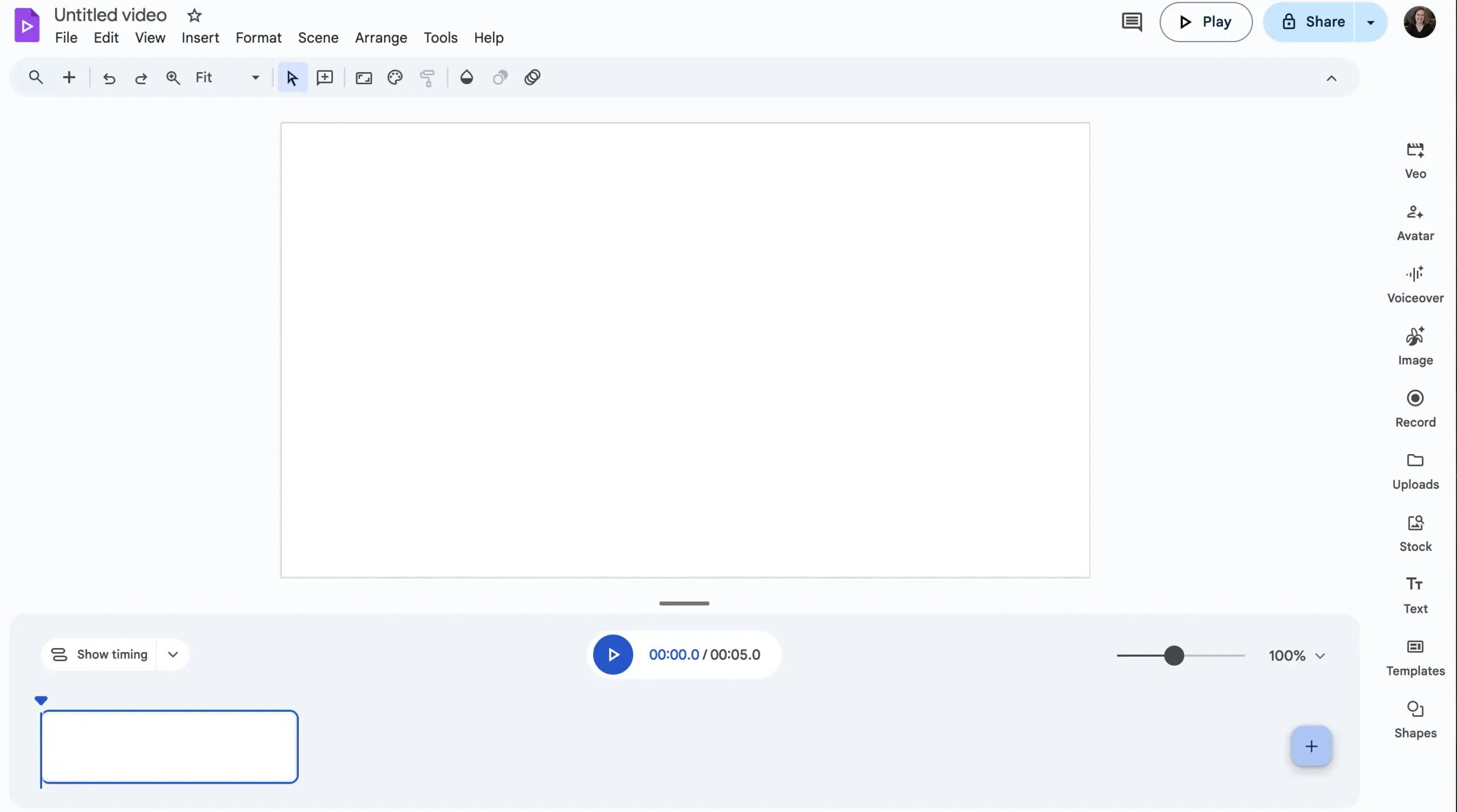
Google Vids is part of Google Workspace and lets you create videos that look surprisingly professional with minimal effort. It saves directly to Google Drive, works smoothly with existing Google tools, and is easy to edit—so it’s approachable for teachers and students.
Why I’m Using It So Much Right Now
Here are my biggest wins with Google Vids in class lately:
- Professional-looking results, fast
- Built-in AI features (depending on your account type)
- Great practice for AI prompting and ethical use (students learning how to cite AI and refine prompts)
- Easy workflow because everything lives in Google Drive
- A faster presentation format (videos can keep presentations short and engaging)
The “Convert Slides to Video” Magic
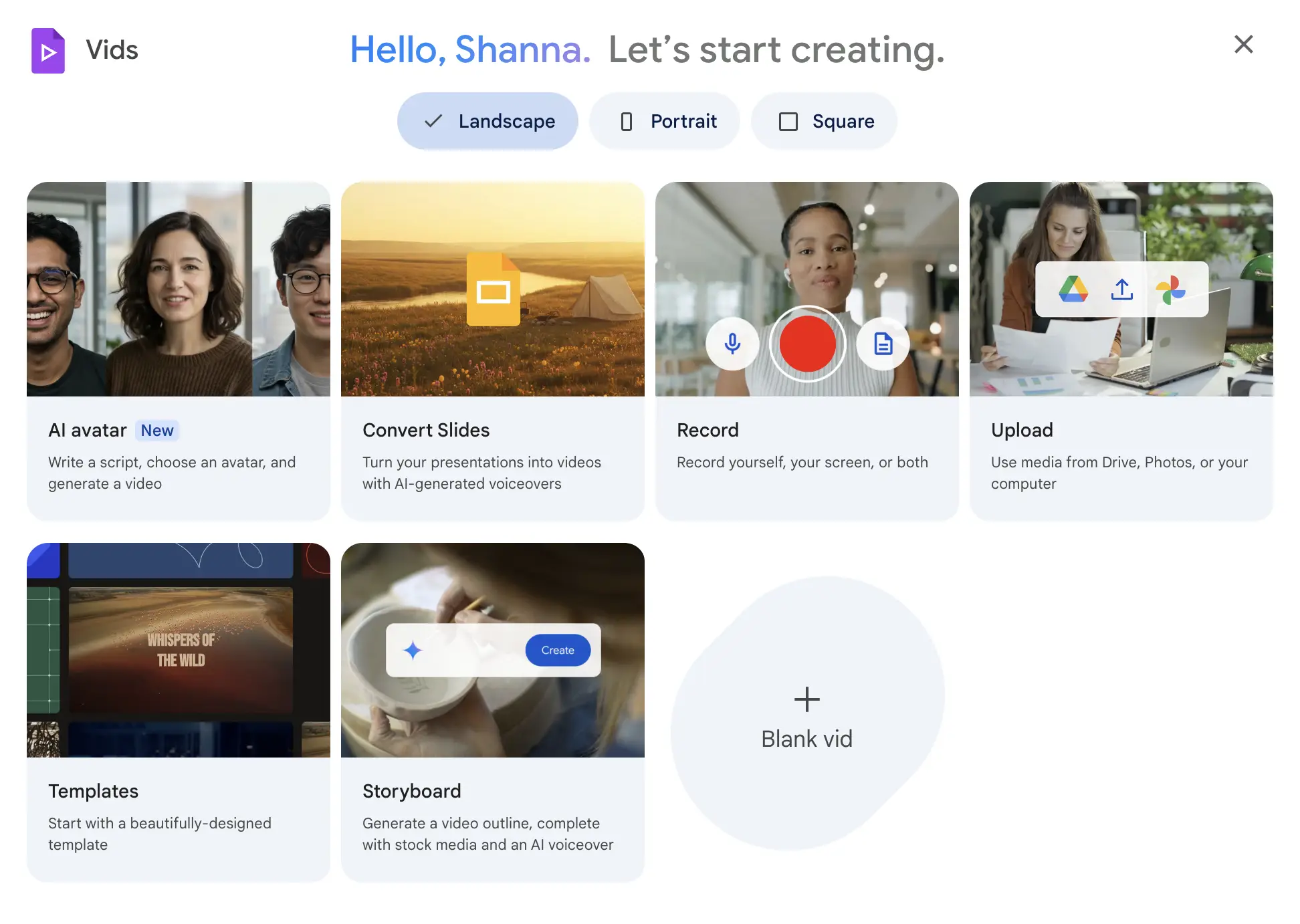
One of the easiest entry points is Convert Slides:
- Open Google Vids from the Google app waffle
- Choose Convert Slides
- Select a Google Slides presentation
- Toggle options like:
- AI voiceover script
- Background music
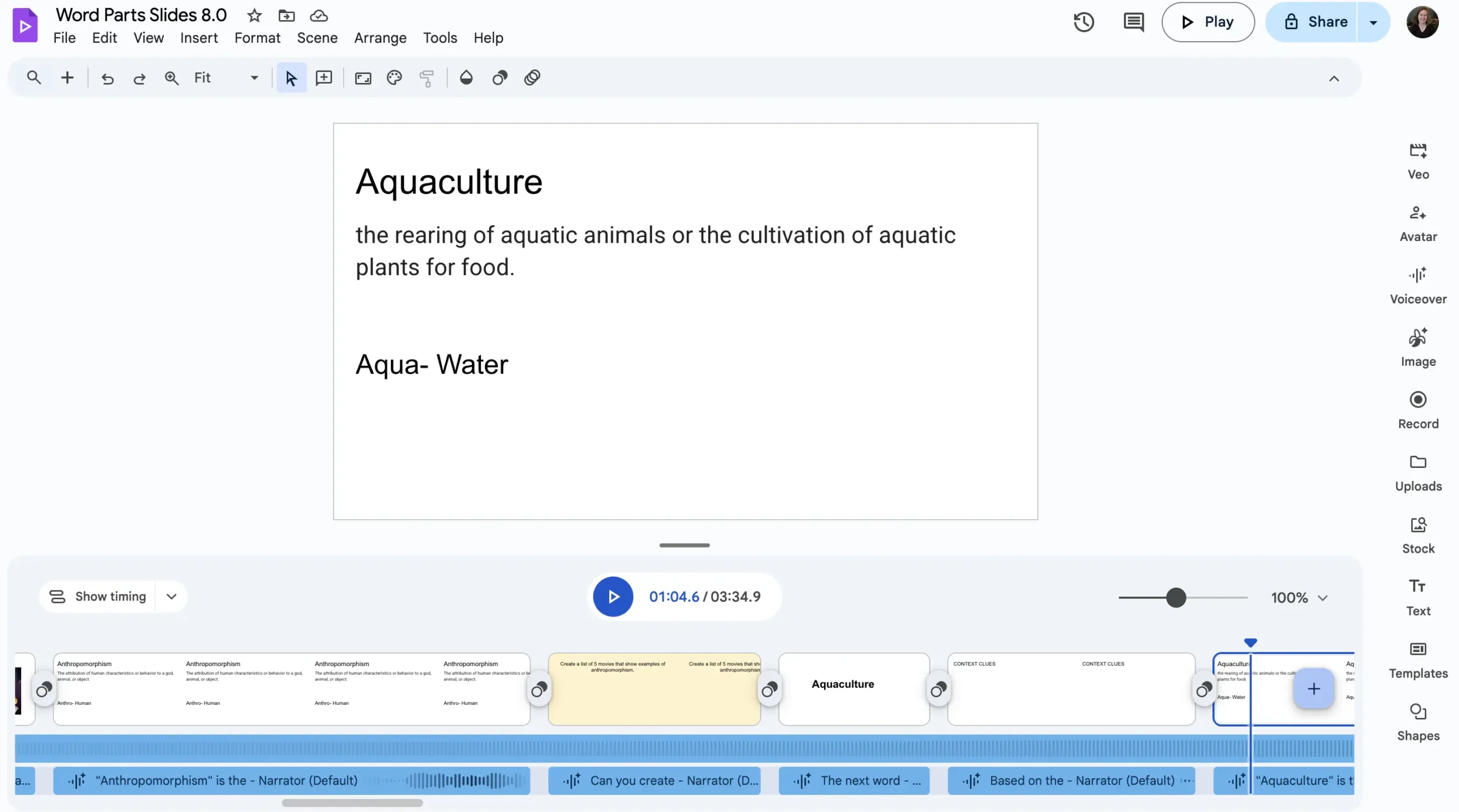
- Import…and Google turns your slide deck into a video-style storyboard
My students are using this for research projects (like National Parks). Even when student accounts don’t allow AI voiceover/music, they can still convert slides into a video and record their own voiceover.
Other Ways to Use Google Vids
Start from Scratch
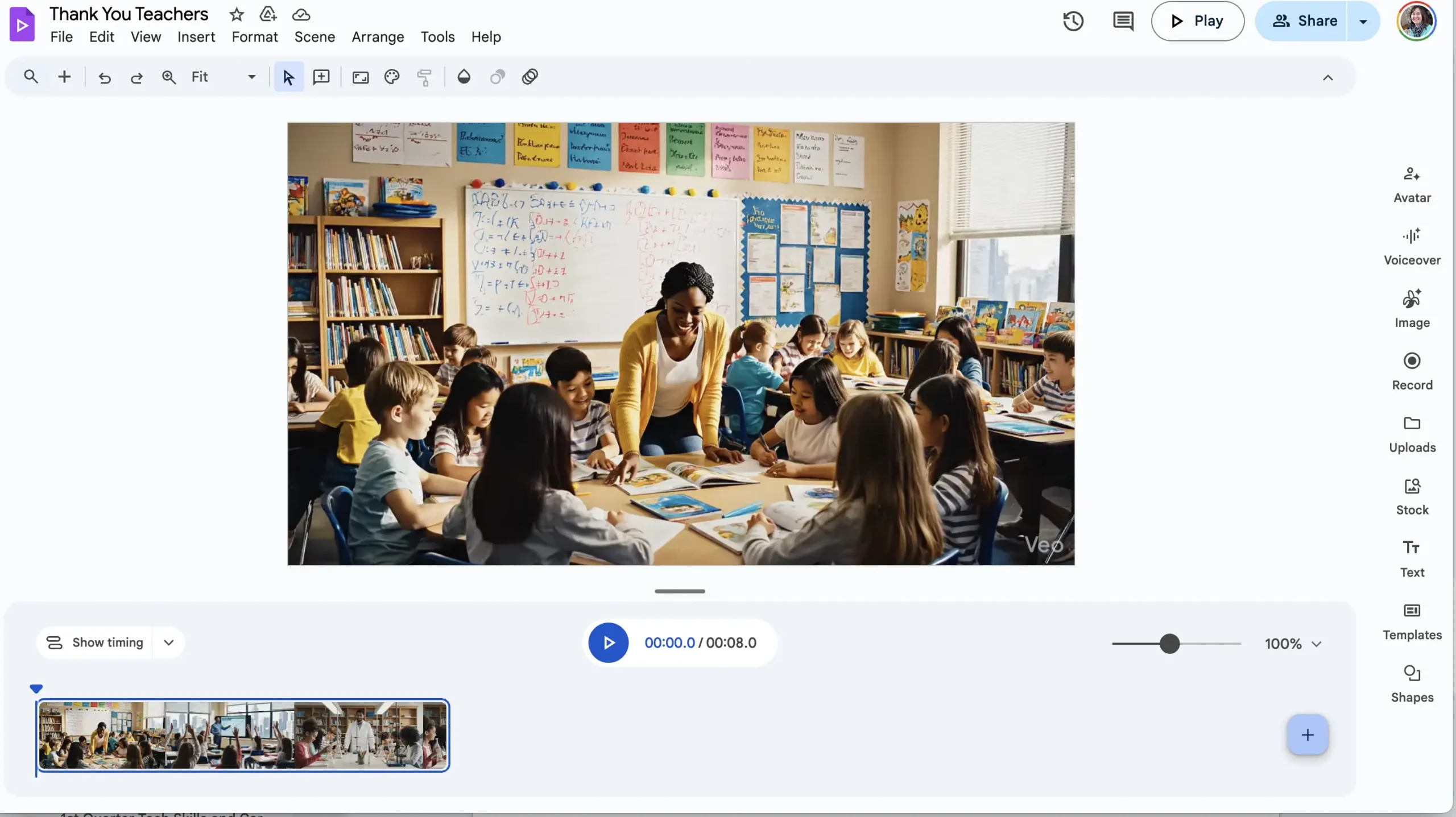
Students (or teachers) can create a blank video and build it scene-by-scene—perfect for:
- explainer videos
- mini-documentaries
- stop motion projects
- quick presentations with visuals + narration
Record Yourself / Screen / Both
Google Vids also supports recording:
- camera only
- screen only
- camera + screen
- audio only
Some other great use cases:
- sub plans
- virtual instruction
- student demonstrations
- accessibility support (ex: student signing on camera while content plays)
Templates + Familiar Tools
Google Vids includes a big library of templates so students aren’t starting from nothing. Editing tools feel familiar—like other Google apps—with options for text, images, layout, and scene structure.
There’s also the option to choose portrait or landscape video size, depending on how you’re sharing it.
Account Differences Matter
A key note from the episode: some features vary depending on your account type:
- Paid Google Workspace accounts may include extras (like AI avatar features)
- Student accounts may have restrictions (common in districts)
Even without the “fancy” AI features, students can still create strong videos by converting slides and recording their own narration.
TECH MENTIONED IN THIS EPISODE
- Google Vids (in Google Workspace): Find it in the Google app waffle (grid menu) as Vids